Hide, reorder, and rename Shopify payment methods — without code
Payment scripts were one of the most common Script Editor use cases before the shutdown. Here's the honest, no-code way to hide, reorder, or rename payment methods at checkout in 2026 — including what still can't be done, by anyone.
Match a payment method by its exact display name, then hide it, move it up or down the list, or swap in a label your customers actually recognize.
Works on any plan (not Plus-only)
Payment Customization Functions apps like Scriptly run on Basic, Shopify, Advanced, or Plus — unlike the old Script Editor, which required Shopify Plus.
Live at checkout in minutes
Build the rule, preview it in the simulator, and enable it — it then runs automatically through Shopify's native Payment Customization Function.
See the rule before it goes live
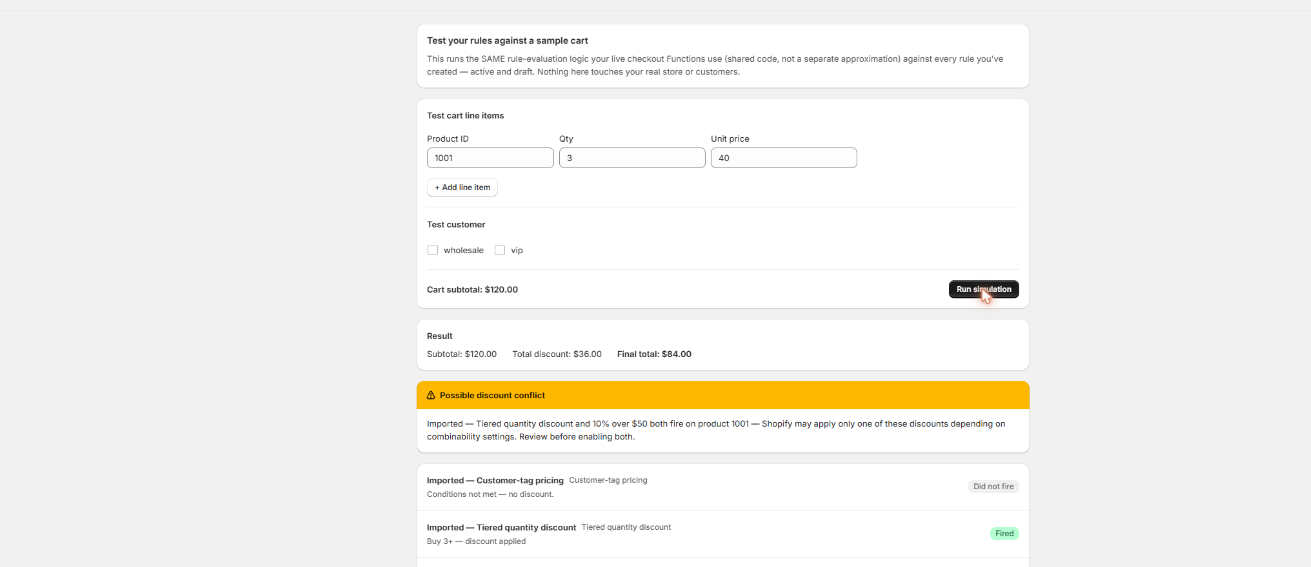
Build a test cart in Scriptly's simulator to see exactly which payment methods a given shopper would see, in what order and under what label — nothing touches real checkout until you've watched the rule work.
Scriptly · rule simulator
Click to enlarge The real Scriptly simulator — test any rule before enabling it.
Why merchants do this
Hiding, reordering, or renaming payment methods isn't an edge case — it was one of the three original Shopify Script types, and one of the most common uses of the Script Editor before it shut down. Merchants reached for payment scripts constantly because the default checkout treats every configured payment method the same way for every customer, and real stores rarely work that way. Typical reasons:
Region or customer-limited COD
Show Cash on Delivery only for certain regions or customer segments, and hide it everywhere else — useful where COD carries real fulfilment risk outside a known service area.
Hide wholesale-only methods
Keep invoice or net-terms payment methods visible only to tagged wholesale accounts, hidden from retail customers who'd otherwise be confused by a "pay later" option meant for B2B.
Push a preferred method first
Move a lower-fee or preferred payment option to the top of the list instead of leaving the order to chance, nudging checkout behavior without removing anyone's choice.
Rename confusing labels
Replace a payment method's default label — often a processor's internal name — with wording your customers actually recognize and trust at checkout.
None of this is about tricking anyone into paying a certain way. It's about matching the payment list to who's actually buying — a wholesale account, a local customer, someone checking out from a region your fulfilment process doesn't cover — instead of showing every method to every shopper regardless of fit.
S
This wasn't optional. Shopify retired the Script Editor and stopped running Shopify Scripts — including payment-method Scripts — on June 30, 2026, directing merchants to move checkout logic to Shopify Functions.
Payment Scripts — Ruby code triggered at checkout — died silently on June 30, 2026, when Shopify stopped executing all Script Editor scripts platform-wide (editing had already been frozen since April 15). Checkout reverted to Shopify's native, unmodified payment method list with no warning to shoppers, and no notification forced merchants to notice until a customer or a support ticket pointed it out.
That silent reversion is exactly why payment-method rules are one of the more urgent pieces to rebuild after the shutdown: unlike a discount that simply stops applying, a payment list quietly showing options it shouldn't — a wholesale invoice method exposed to retail shoppers, COD visible outside your service area — can create real operational problems before anyone notices.
The Shopify-native replacement is Payment Customization Functions: small, sandboxed WASM functions that run at checkout to hide, reorder, or rename payment methods based on conditions you define. Unlike the old Scripts, you don't write these yourself unless you're on Plus with a developer for custom logic — you configure them through a public Functions app like Scriptly.
What's possible now via Functions apps
Through a Functions app, payment-method rules can be conditioned on:
Cart total — for example, hide Cash on Delivery above a certain order value.
Customer tags — for example, show a net-terms invoice method only to accounts tagged "wholesale."
Products in the cart — for example, hide a payment method when a restricted item is present.
Rules can hide a method, move it up or down in the list, or change its displayed label. Matching happens by the payment method's exact display name (case-insensitive) — Shopify doesn't expose a stable ID for third-party apps to key off of, so the label shown to customers is what your rule matches against.
Conditions can also be combined — for example, hide a wholesale invoice method unless the customer is tagged "wholesale" and the cart total is above a minimum order value, rather than tag alone. This mirrors what a hand-written payment Script could do with conditional logic; it's just expressed as a set of dropdowns and toggles instead of code.
Step-by-step with Scriptly
None of this requires touching code or waiting on a developer. The whole setup lives in Scriptly's rule builder, and nothing goes live until you enable it yourself.
Open the "Payment method rules" template
Start from Scriptly's payment-method rule builder.
Pick the payment method by its exact display name
For example, "Cash on Delivery (COD)." Case doesn't matter, but the wording has to match what's configured in your Shopify payment settings.
Set the action
Hide, reorder, or rename — pick one or combine them.
Add conditions if needed
Cart total, customer tag, or products in cart.
Preview in the simulator
Test the rule against real cart scenarios before it goes live.
Enable the rule
It runs through the same Payment Customization Function Shopify calls at checkout.
What no app can do
Read this before you build a rule
No third-party Functions app — Scriptly included — can hide accelerated checkouts or BNPL methods like Shop Pay Installments, Apple Pay, or Google Pay. That's a Shopify platform restriction, not a vendor limitation, and no amount of clever rule-building gets around it.
Matching is by exact display name because Shopify doesn't expose a stable payment method ID to apps. If you rename the method in your Shopify payment settings later, update the rule too — otherwise it'll silently stop matching.
Guest checkouts can never match customer-tag conditions, because guests aren't signed into an account with tags. Tag-based payment rules only apply to logged-in customers; plan wholesale-only rules with that in mind if your B2B customers sometimes check out as guests.
These aren't gaps specific to Scriptly — they apply to every Payment Customization Function on the platform, because they come from what Shopify exposes to apps in the first place, not from how any individual app is built.
FAQ
Can I hide Apple Pay or Shop Pay Installments for certain customers?
No. Accelerated checkouts and BNPL methods can't be hidden by any third-party Functions app, including Scriptly. That's a platform-level restriction from Shopify, not something any app vendor can work around.
Why does the rule need the exact payment method name?
Shopify doesn't give apps a stable ID for payment methods — only the display name customers see — so that's what rules match against, case-insensitively.
Will this work for guest checkouts?
Customer-tag conditions won't match for guests, since there's no account to check tags against. Cart-total and product-based conditions work regardless of login status.
Did my old Payment Script carry over automatically?
No. Payment Scripts stopped executing on June 30, 2026, and nothing carries over automatically — you rebuild the logic through a Functions app or native settings.
Do I need Shopify Plus for this?
No. Payment Customization Functions apps like Scriptly work on any Shopify plan.
Can I reorder payment methods without hiding any?
Yes. Reordering and renaming are separate actions from hiding, and can be combined or used on their own.
Set your payment method rules today
Build the rule, preview it in the simulator, and enable it — all without touching code or waiting on a developer.